This tutorial takes you from a plain spreadsheet to a finished figure you can put straight into your thesis. By the end you will have a calibration curve with error bars, a linear fit showing its equation and R², correctly formatted units, and a vector PDF that passes PlotBench's pre-submission check.
Everything here works in the free edition.
What you need
- PlotBench for Windows 10 or 11. It is free; get it from the download section.
- The sample data: calibration.csv (11 rows). You can also use your own data with the same layout.
Step 1: Lay out your data
PlotBench reads data in columns, with names in the first row. The sample file looks like this:
| Concentration (mg/L) | Absorbance (a.u.) | SD |
|---|---|---|
| 0 | 0.004 | 0.003 |
| 2 | 0.103 | 0.006 |
| 4 | 0.201 | 0.005 |
| … | … | … |
Three things matter:
- First column = X. The leftmost numeric column becomes the horizontal axis.
- Then your Y values. You can have more than one Y column. Each becomes a series.
- An error column straight after its Y column. If the column name contains SD, SEM, SE, error, CI or ±, PlotBench treats it as error bars for the Y column on its left.
The column names become your axis titles, so it pays to include units now.
Step 2: Import the file
When PlotBench opens you see the start screen. Click Import data and choose calibration.csv. CSV, TXT and Excel files (.xlsx, .xls) all work.
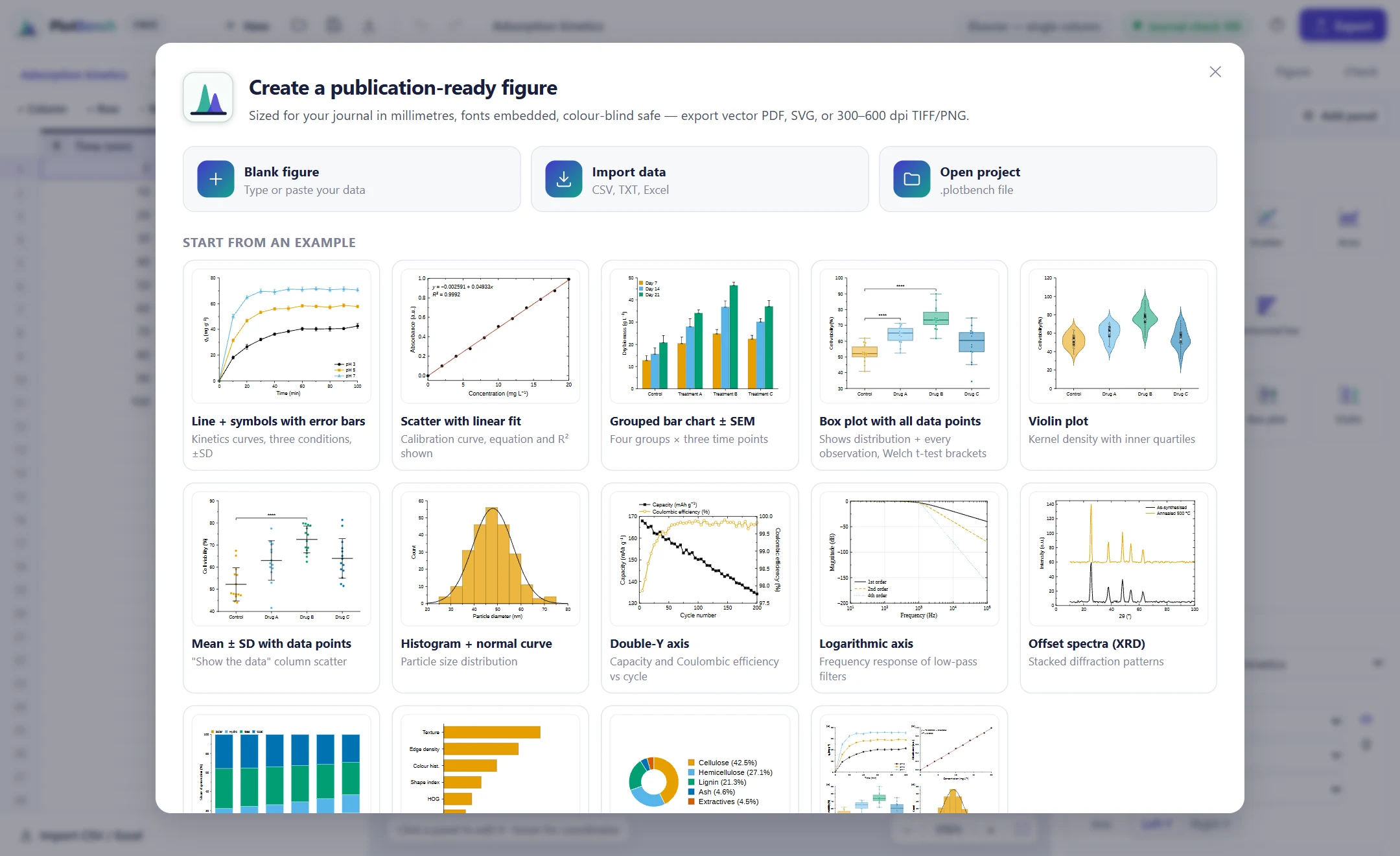
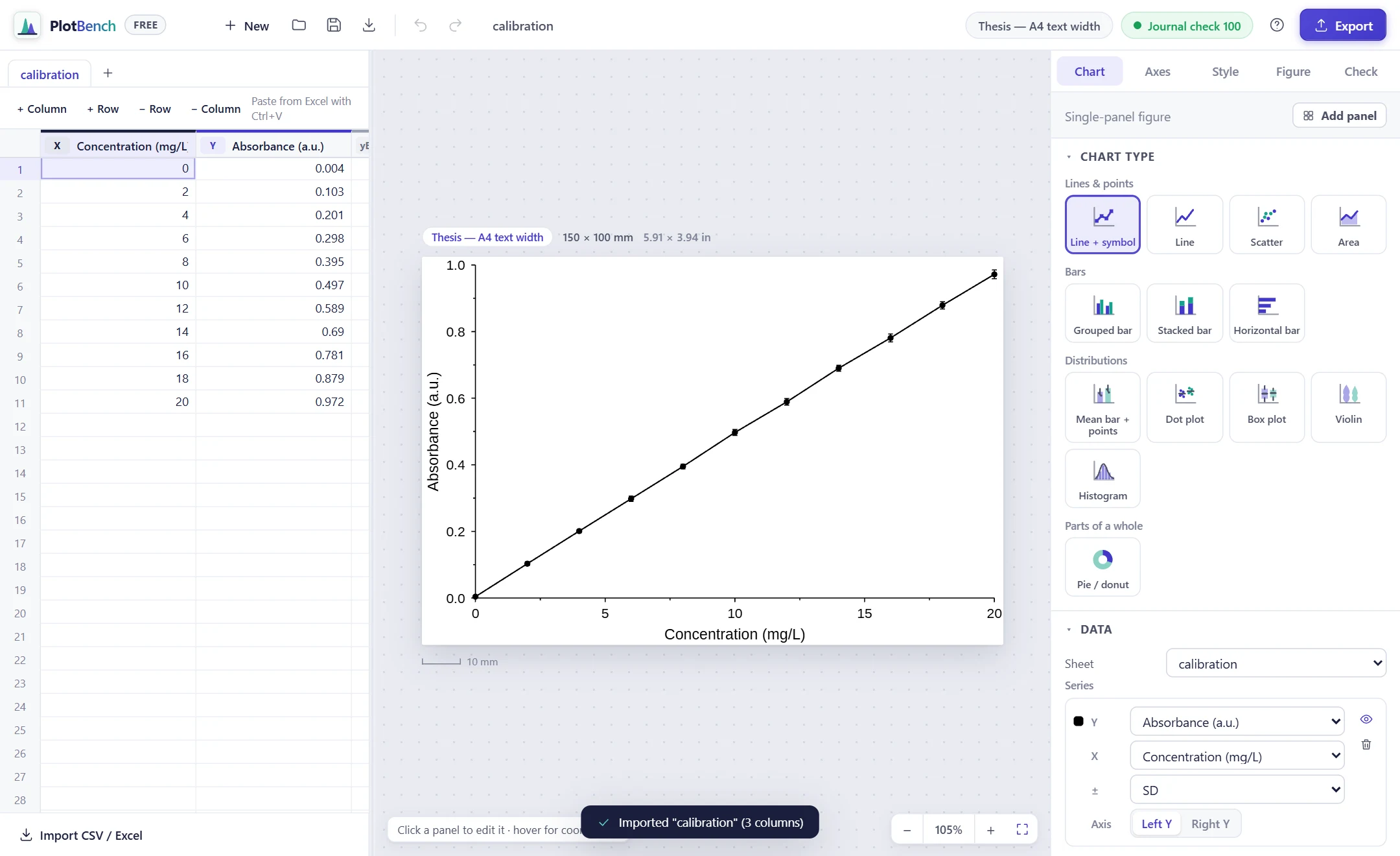
PlotBench creates a new figure from the file:
- The sheet on the left shows your data. The small tag above each column is its role: X, Y, yEr (± error), xEr or L (text labels). Click a tag to change it.
- The canvas in the middle shows the figure at its true printed size. The blue label above it says which size preset is in use. Free figures start at Thesis, A4 text width, which is 150 × 100 mm.
- The inspector on the right is where you change everything else, using five tabs: Chart, Axes, Style, Figure and Check.
Tip: Don't have a file? Click Blank figure instead, then type in the sheet or paste a block from Excel with Ctrl+V. If you import into a figure that already holds other data, open Chart → Data → Sheet and choose your new sheet to plot it.
Step 3: Choose the chart type and add a linear fit
Calibration points should not be joined by lines, so switch to a scatter plot:
- In the Chart tab, under Chart type, click Scatter.
- Scroll down to Curve fitting and click it to open the section.
- Click Add fit. The default is a linear fit with the equation and R² shown on the plot.
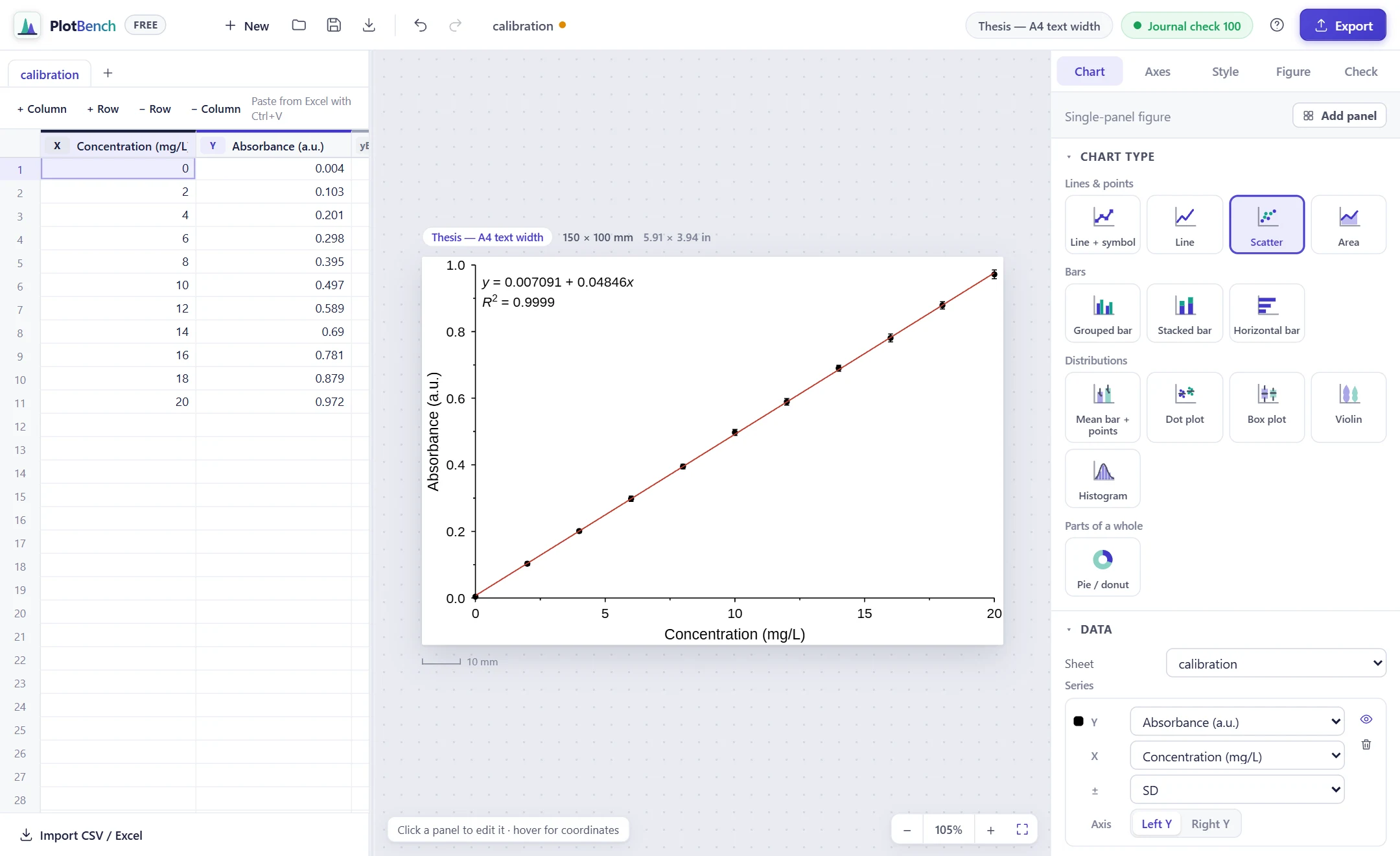
From the fit row you can switch to a quadratic, cubic, exponential, power or logarithmic model, and turn the equation or R² on and off. The Data section under the chart types shows which columns feed each series. You can change the Y, X and error-bar columns there at any time.
Step 4: Write proper axis titles and units
"mg/L" is fine in a spreadsheet, but most journals and thesis guides prefer "mg L⁻¹". Open the Axes tab and edit the X-axis title:
Concentration (mg L^{\minus1})
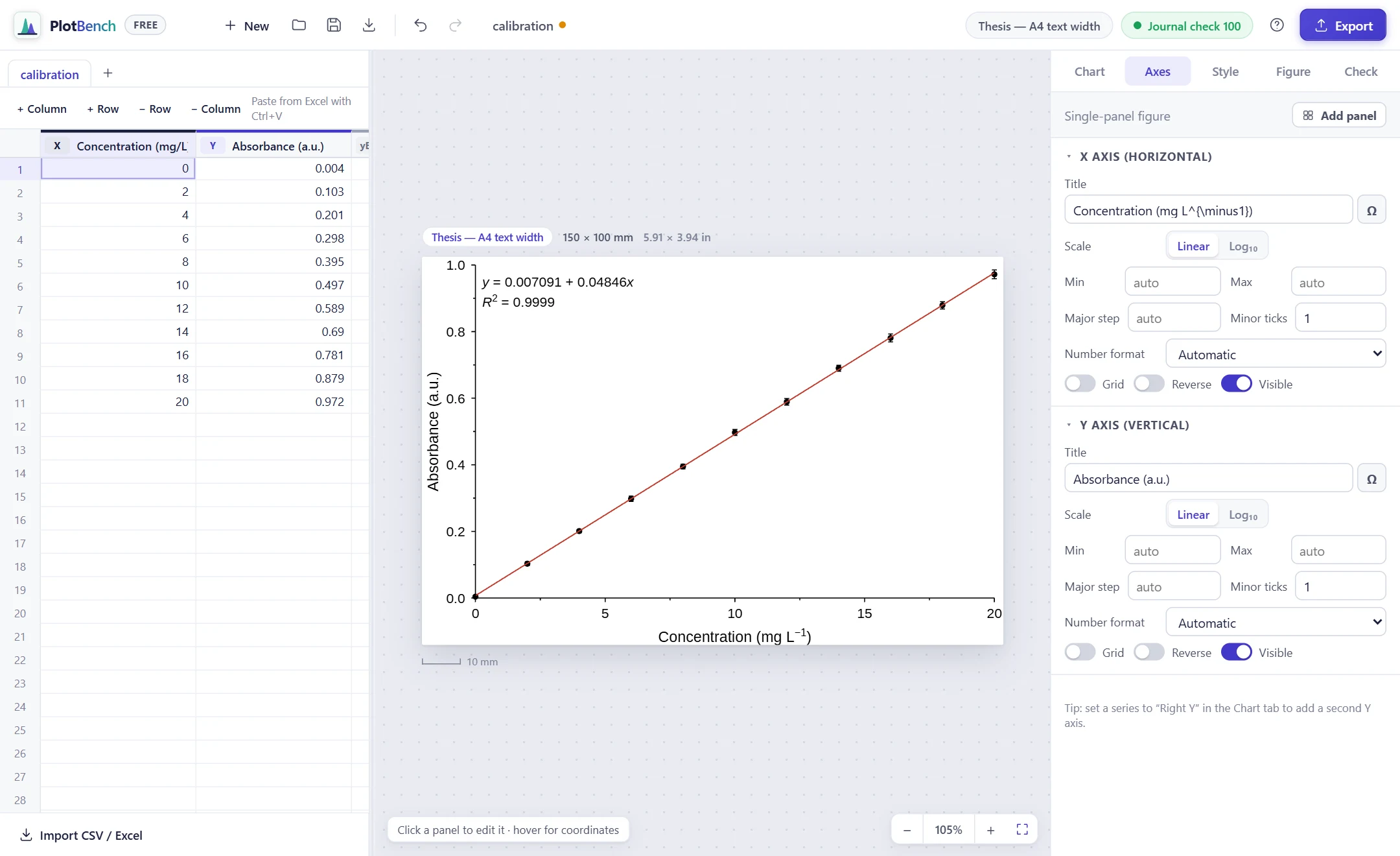
PlotBench uses a short markup for scientific text. Here are the codes you will use most:
| Type this | To get |
|---|---|
x^{2} |
superscript, x² |
H_{2}O |
subscript, H₂O |
\minus |
a true minus sign, − |
\alpha, \Delta, \mu |
Greek letters, α Δ μ |
\i{T}_{g} |
italic symbol with subscript, Tg |
\degree C, \pm |
°C, ± |
If you don't want to type codes, click the Ω button next to any title to pick symbols. The same tab also controls axis limits, tick spacing, log scale and the grid.
Step 5: Run the pre-submission check
The Journal check score in the top bar is updated as you edit. Click it, or open the Check tab, to see how your figure measures up against the rules of the selected preset: figure width, minimum text size, line thickness, embedded fonts and colour-blind safety.
To see what a problem looks like, we shrank the tick labels to 6 pt. That breaks the thesis preset's 9 pt minimum, so the score drops to 82 and the check names the issue:
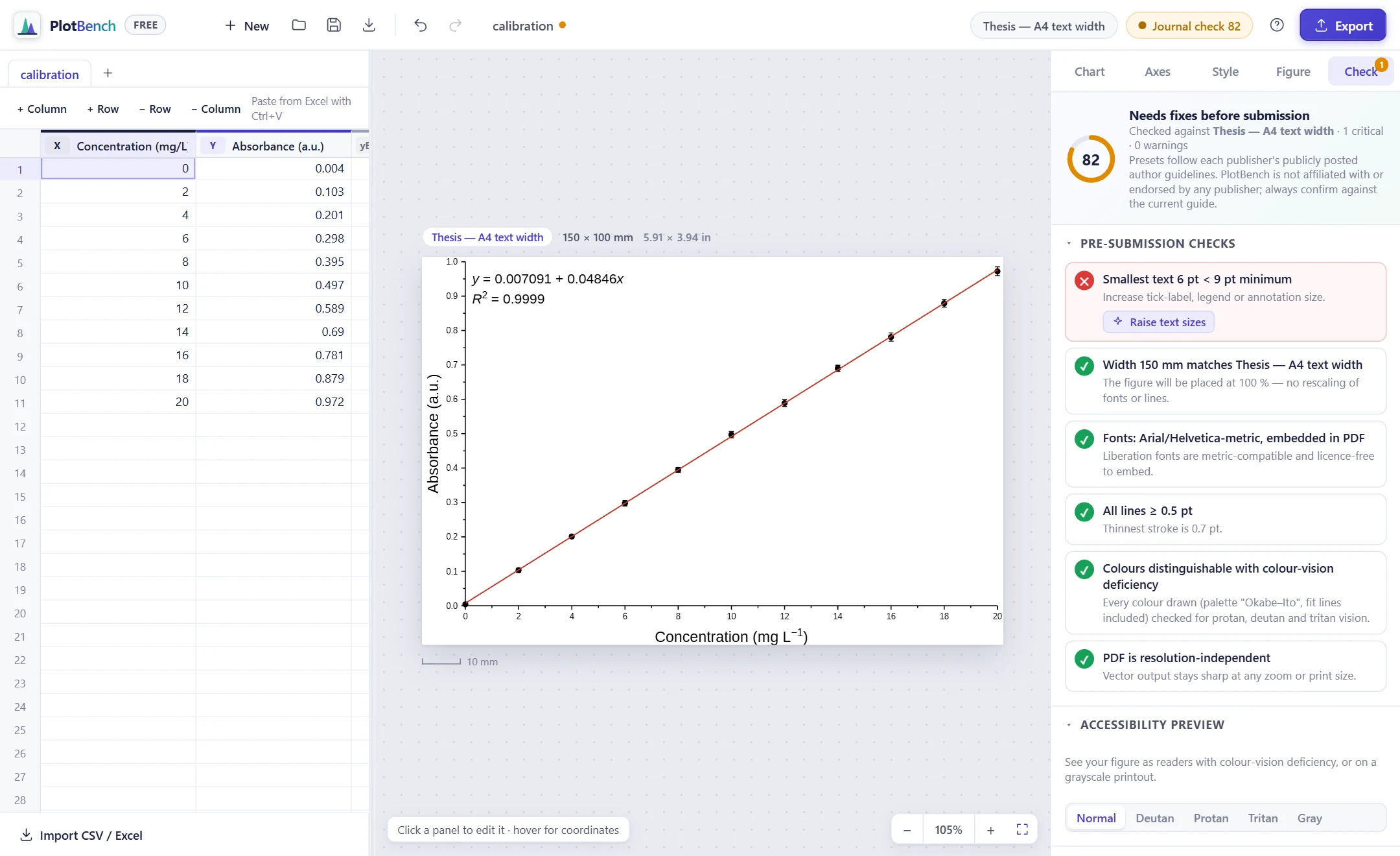
Click Raise text sizes and the score goes back to 100. Every failed check explains what is wrong, and most come with a one-click fix like this one.
Further down the Check tab:
- Accessibility preview shows the figure as readers with colour-vision deficiency would see it, and as a grayscale printout.
- Draft caption writes a starting caption and alt text from what is plotted. For this figure it names the plot type and the least-squares linear fit, and reminds you to say whether the error bars are SD or SEM and to give n.
Tip: Writing for a journal rather than a thesis? Open Figure → Target publication and choose the journal's preset. The Check tab then scores your figure against that journal's figure guidelines. In the free edition journal presets are preview-only; applying them and their one-click fixes are part of Pro.
Step 6: Export
Click Export in the top right, or press Ctrl+E.
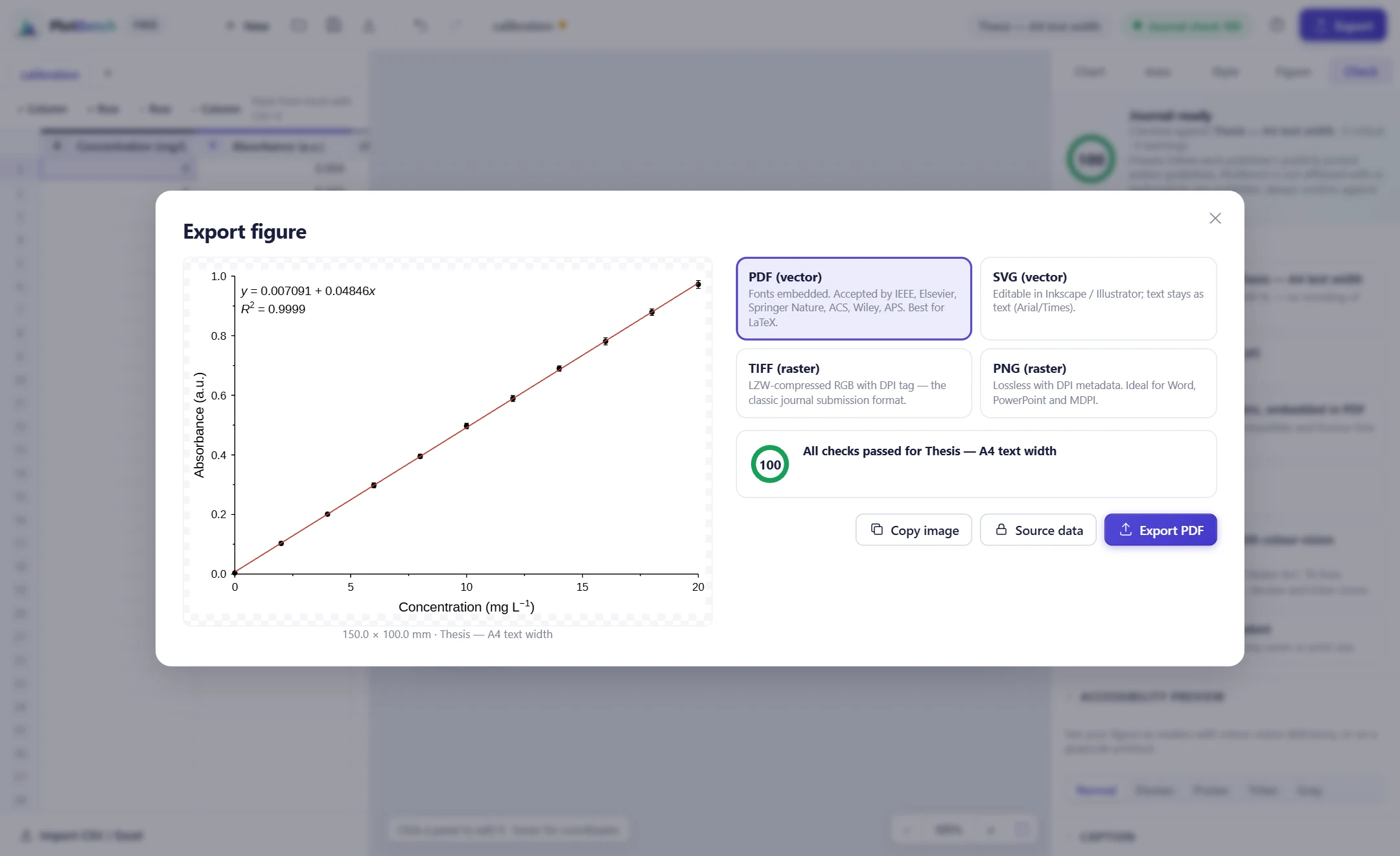
Which format should you pick?
| Format | Use it for |
|---|---|
| PDF (vector) | Theses, LaTeX and most journals. Sharp at any zoom, with fonts embedded. |
| SVG (vector) | Editing later in Inkscape or Illustrator. Text stays editable. |
| TIFF (raster) | Journals that ask for TIFF. Choose 300 or 600 dpi. |
| PNG (raster) | Word and PowerPoint. |
To drop the figure straight into a Word document or a slide, click Copy image (a 300 dpi copy) and paste with Ctrl+V.
Finally, press Ctrl+S to save a .plotbench project. It keeps your data and every setting, so when your supervisor asks for a change next month, you change one thing and export again.
Quick recap
- Data in columns: X first, then Y, then an SD column after its Y.
- Import data on the start screen.
- Chart → Scatter, then Curve fitting → Add fit.
- Axes: write units with
^{}and\minus. - Check: fix anything red with one click.
- Export → PDF, and Ctrl+S to keep the project.
Next in this series we will build a multi-panel figure with aligned axes and (a), (b), (c) labels. To hear when it is out, follow PlotBench on X, Threads or YouTube.